Plain Air Tell me when it’s out

A Mac app by nicoleslittlebrother

Your Wi-Fi, in plain English.

Is it your Wi-Fi or your internet? One check, one sentence, and what to change, measured on your Mac in about 20 seconds.

Tell me when it’s out

With Apple for review since 1 Nov

See what’s wrong free · €4.99 once to keep watch macOS 26 or later

The check

About 20 seconds · on your Mac

One sentence, from four measurements.

Plain Air times your Mac to your router, your router to Apple, and the names your Mac looks up, then says which part is slow. When it can’t tell, it says so.

  • This Mac to your router

    Your Wi-Fi

    4 msusual reply

    Pauses on a beat26 of 150 over 40 ms

    150 pings to your router, 100 ms apart.
  • Your router to Apple

    Your internet

    17 msusual answer

    Quick20 of 20 answered

    20 requests to Apple’s own check page.
  • Your Mac’s DNS server

    Names

    12 msusual lookup

    Answered4 of 4 answered

    4 lookups of a name, the way every page starts.
  • Apple’s check, again

    Sign-in page

    Nonein the way

    ClearApple’s own page came back

    Whether a café or hotel page is in the way before you get online.

Every word comes from a measurement taken on your Mac a moment ago. Measured, never guessed.

Pauses

150 replies · 15 seconds

What a speed test never shows.

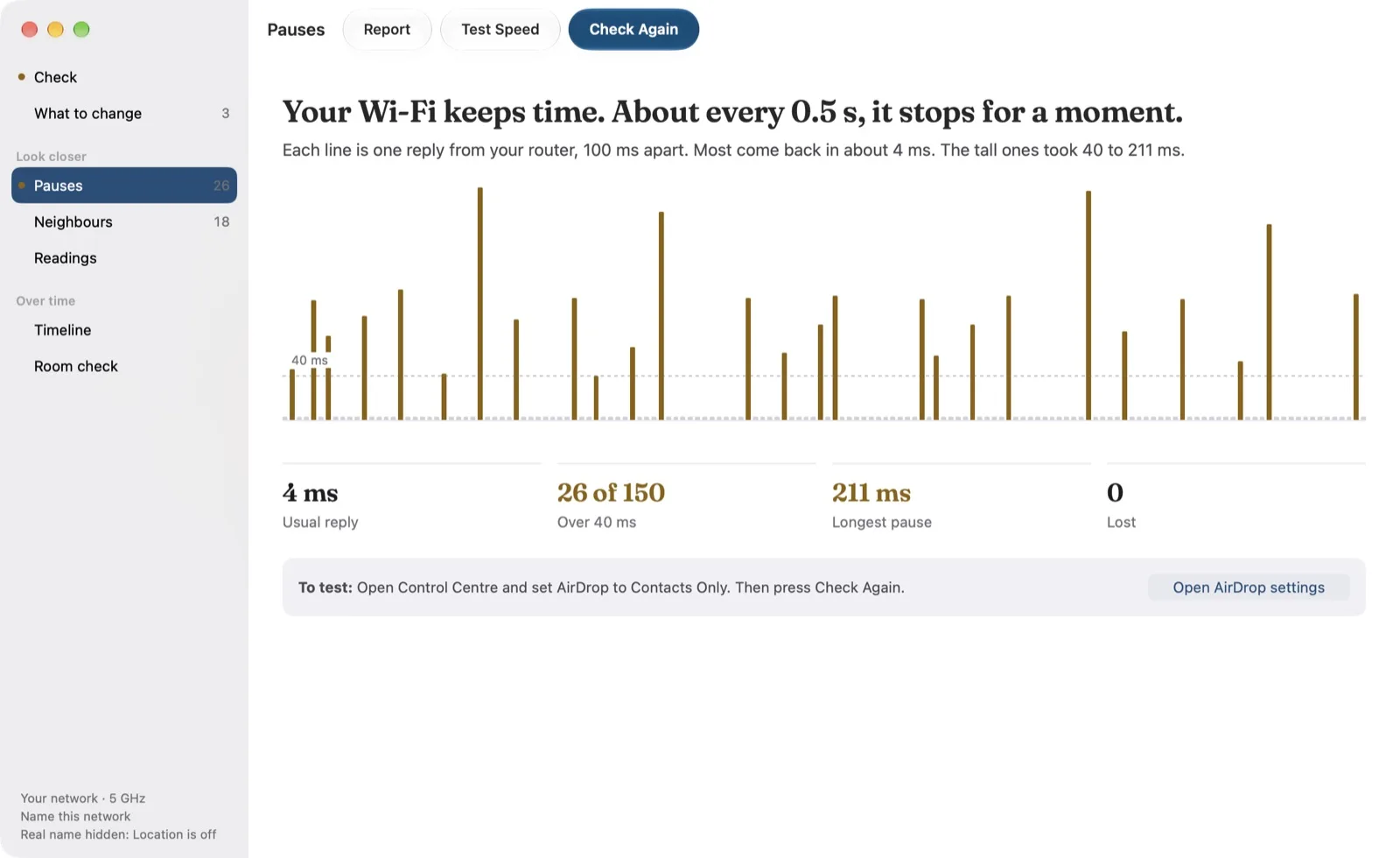
Calls that stutter while a speed test says all is well are often pauses: your Wi-Fi stops for a moment, then carries on. Here are all 150 replies from the router in this check, one line each, 100 ms apart. The tall ones took over 40 ms.

Usual reply
4 ms
Over 40 ms
26 of 150
Longest pause
211 ms
Lost
0

That’s enough to make a call stutter.

What to change

3 for this check

What to change, likeliest first.

A short list for this check: what to do, why, and where. One button opens the right place, and every change that rests on a standard or Apple’s advice says which.

  1. 01

    Most likely to help · On this Mac

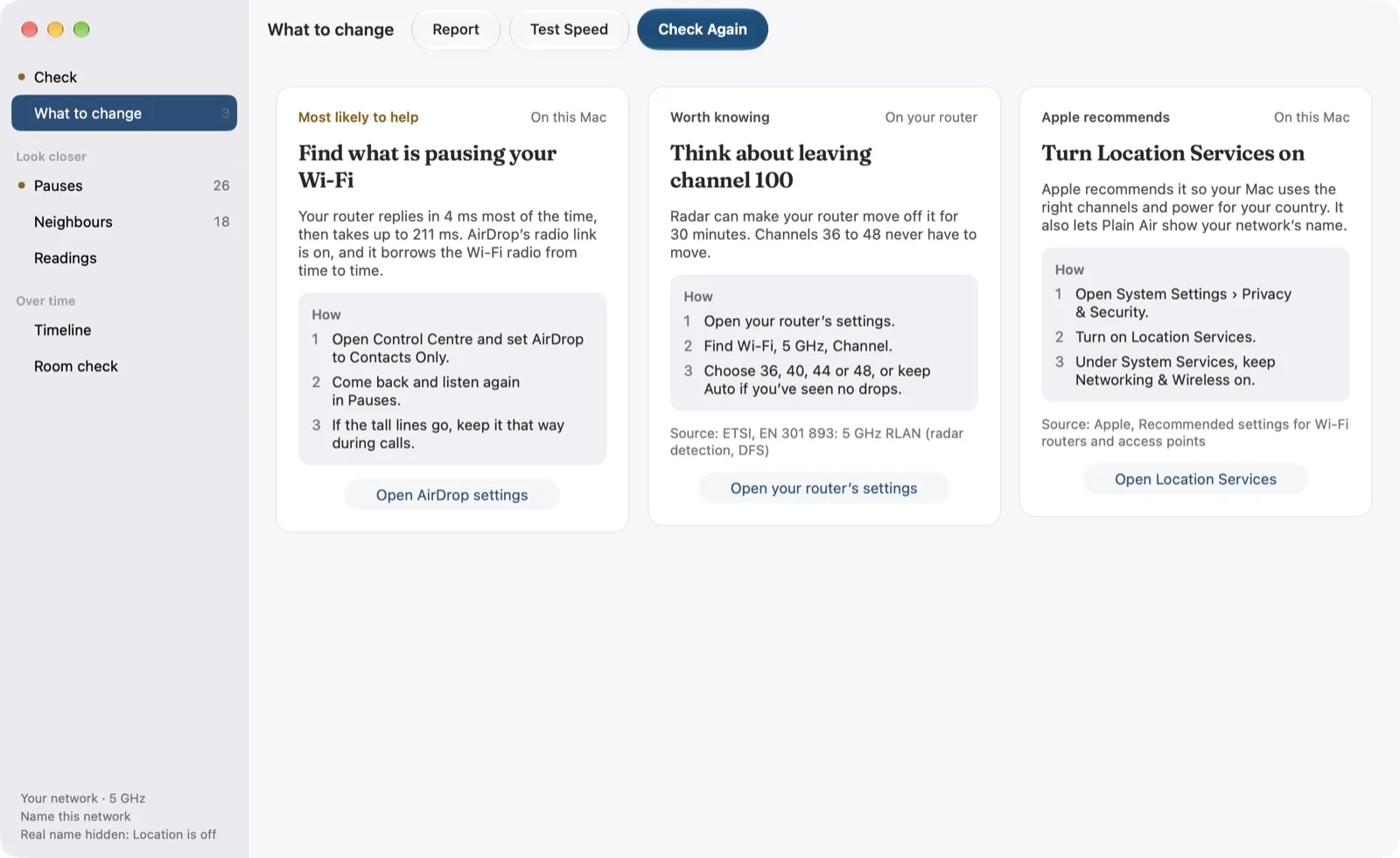
    Find what is pausing your Wi-Fi

    Your router replies in 4 ms most of the time, then takes up to 211 ms. AirDrop’s radio link is on, and it borrows the Wi-Fi radio from time to time.

    1. Open Control Centre and set AirDrop to Contacts Only.
    2. Come back and listen again in Pauses.
    3. If the tall lines go, keep it that way during calls.

    The buttonOpen AirDrop settings

    Measured: a test, not a diagnosis. If the tall lines go after the change, you have your answer.

  2. 02

    Worth knowing · On your router

    Think about leaving channel 100

    Radar can make your router move off it for 30 minutes. Channels 36 to 48 never have to move.

    1. Open your router’s settings.
    2. Find Wi-Fi, 5 GHz, Channel.
    3. Choose 36, 40, 44 or 48, or keep Auto if you’ve seen no drops.

    The buttonOpen your router’s settings

    Source: ETSI, EN 301 893: 5 GHz RLAN (radar detection, DFS)

  3. 03

    Apple recommends · On this Mac

    Turn Location Services on

    Apple recommends it so your Mac uses the right channels and power for your country. It also lets Plain Air show your network’s name.

    1. Open System Settings › Privacy & Security.
    2. Turn on Location Services.
    3. Under System Services, keep Networking & Wireless on.

    The buttonOpen Location Services

    Source: Apple, Recommended settings for Wi-Fi routers and access points

Plain Air never changes a thing. You do.

It never logs in to your router and never touches a setting on your Mac. “Open your router’s settings” opens your router’s own page in your browser; the rest open the right pane of System Settings.

Neighbours

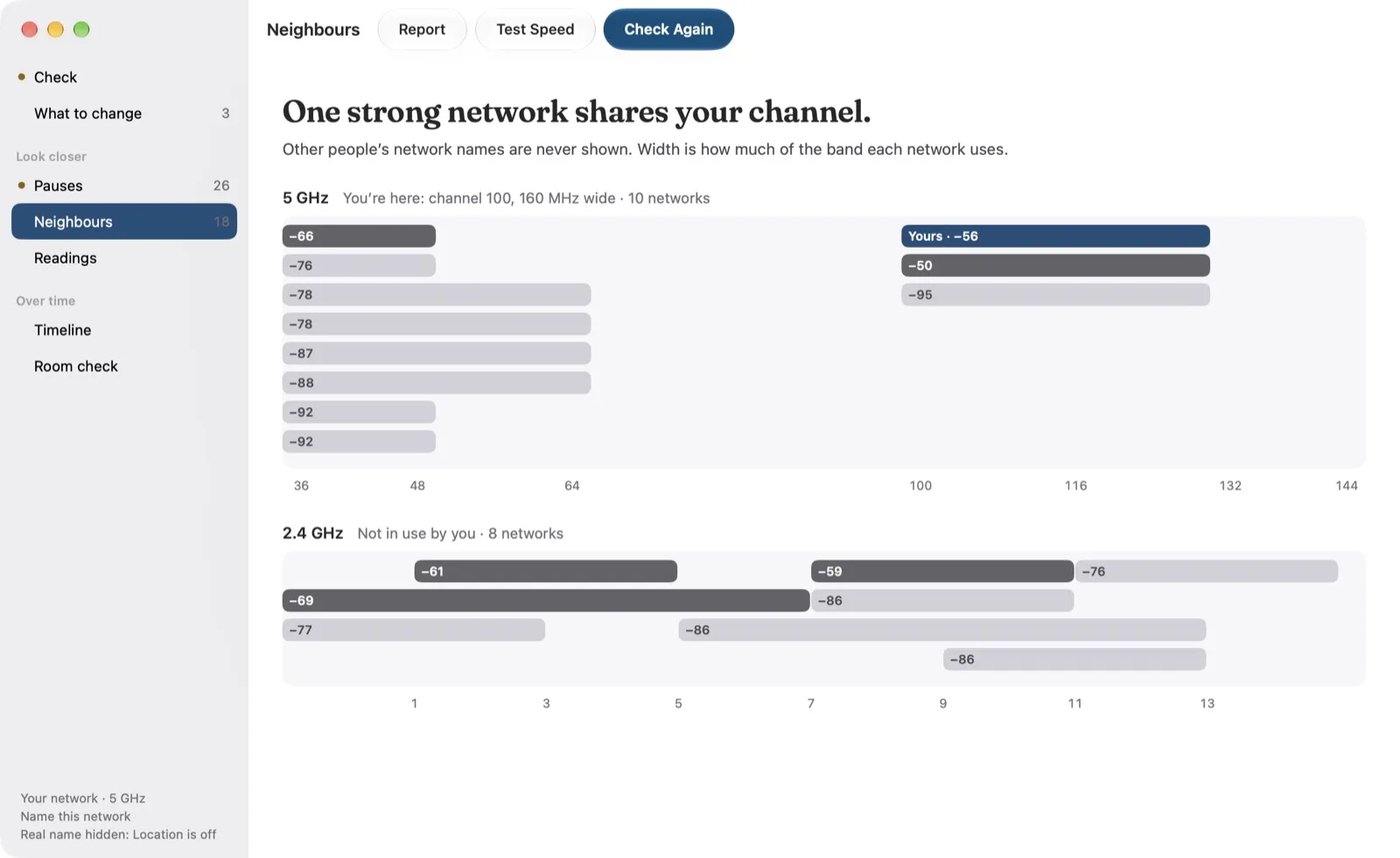
18 networks heard · names never shown

Who shares your air.

Every network your Mac can hear, by channel. Width is how much of the band each one uses. Here, one strong network shares your channel.

Every answer

24 sentences · 6 published sources

Every sentence it can say.

The sentence at the top of Check is the first of these that applies. They come from the same file the app ships; a gold mark means a reading crossed its line. It says when all is well, too. What each one means

This Mac04
Wi-Fi is off.
Your Mac is using Ethernet, so there’s no Wi-Fi to check.
Location Services is off on this Mac.
You’re connected through a VPN.
Your Wi-Fi07
Plain Air couldn’t get an answer from your router.
Your Wi-Fi signal is weak here: −78 dBm.
Your Wi-Fi signal is only 12 dB above the noise.
Your Wi-Fi is quick, but it pauses on a beat, about every 0.5 s.
Your Wi-Fi pauses now and then.
Your router is slow to answer: 45 ms on average.
Your router doesn’t answer pings, so the Wi-Fi stretch is timed another way.
Your internet03
This network wants you to sign in before it lets you online.
Your Wi-Fi is working, but your router can’t reach the internet.
Your Wi-Fi is fine. The trouble is your internet: Apple takes 185 ms to answer.
Names01
Your Wi-Fi and internet are fine, but looking up names takes 600 ms.
Who shares your air05
7 networks overlap your channel 6. Channel 1 has 3.
You’re on 2.4 GHz. A strong 5 GHz network is here too.
Your router uses a 40 MHz channel on 2.4 GHz.
Your network uses older security: WPA/WPA2.
Your router is on a radar channel: 100.
After Test Speed03
Your line slows down a lot when it’s busy.
Your line is fast, and mostly holds up when it’s busy.
Your line is fast and stays responsive when it’s busy.
When all is well01
Your Wi-Fi and your internet are both fine.

Pay once

Watching, the menu bar and the report

If it’s your provider, you’ve got the evidence.

It keeps watch, with the window closed.

Pauses and drops come and go, so one check can miss them. Keep watching logs them as they happen: about 13 small packets every 30 seconds, no scans.

What it logs
Wi-Fi dropped
Wi-Fi back
Moved to another access point
Internet down; your Wi-Fi stayed up
Internet back
Pauses

Pauses

Your Wi-Fi is quick, but it pauses on a beat, about every 0.5 s.

Keeping watch · no drops in 12 hours

One word from your last check, when something is off: Pauses, Weak signal, Slow Wi-Fi, Slow internet, No internet, Sign in, Slow names or Crowded. When all is fine, just the glyph.

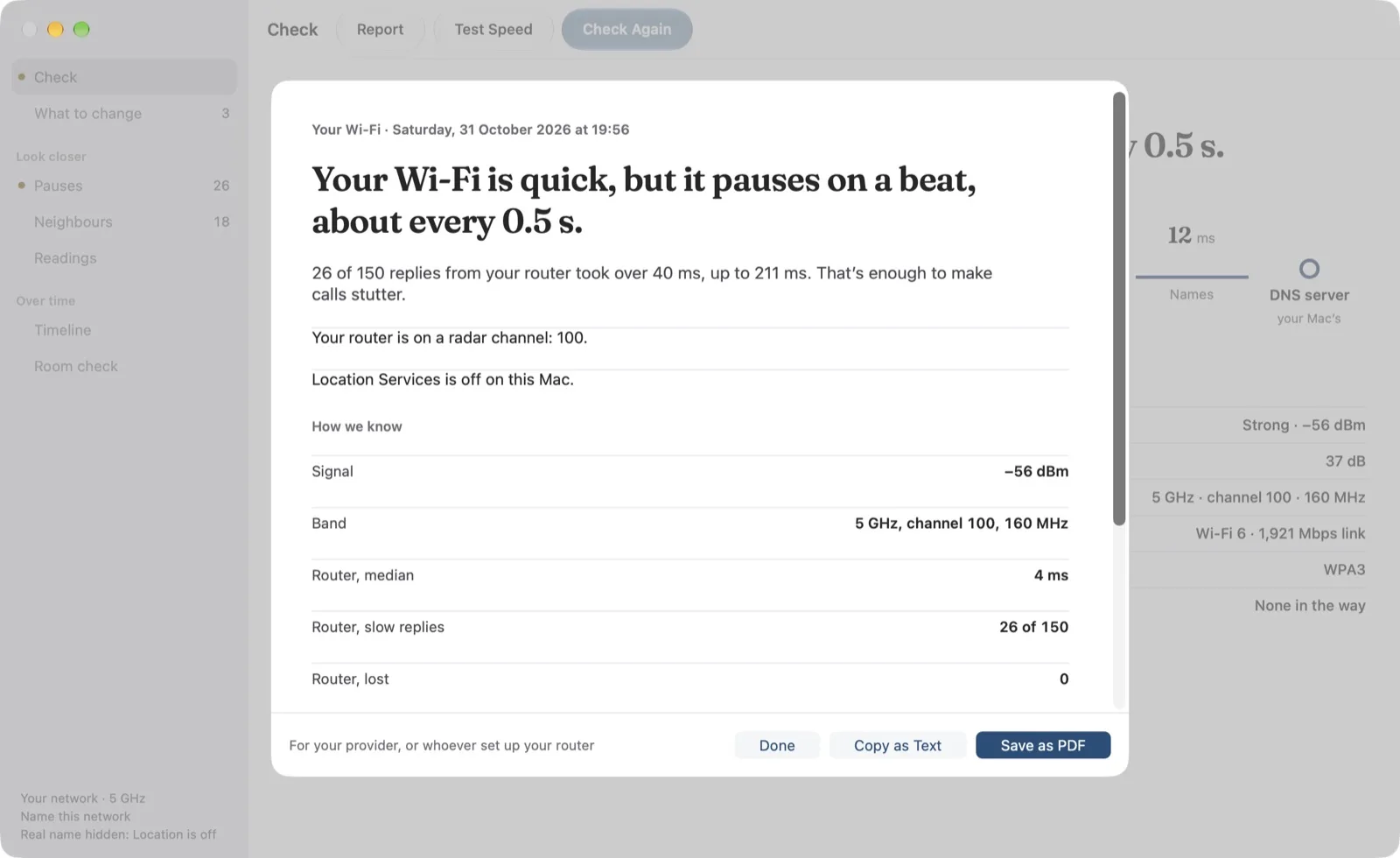
Your Wi-Fi · Saturday, 31 October 2026 at 19:56

Your Wi-Fi is quick, but it pauses on a beat, about every 0.5 s.

26 of 150 replies from your router took over 40 ms, up to 211 ms. That’s enough to make calls stutter.

Your router is on a radar channel: 100.

Location Services is off on this Mac.

How we know

Signal
−56 dBm
Band
5 GHz, channel 100, 160 MHz
Router, median
4 ms
Router, slow replies
26 of 150
Router, lost
0
Apple, median
17 ms
Names
12 ms

Measured on this Mac by Plain Air. It talks only to the router, the Mac’s DNS server and Apple.
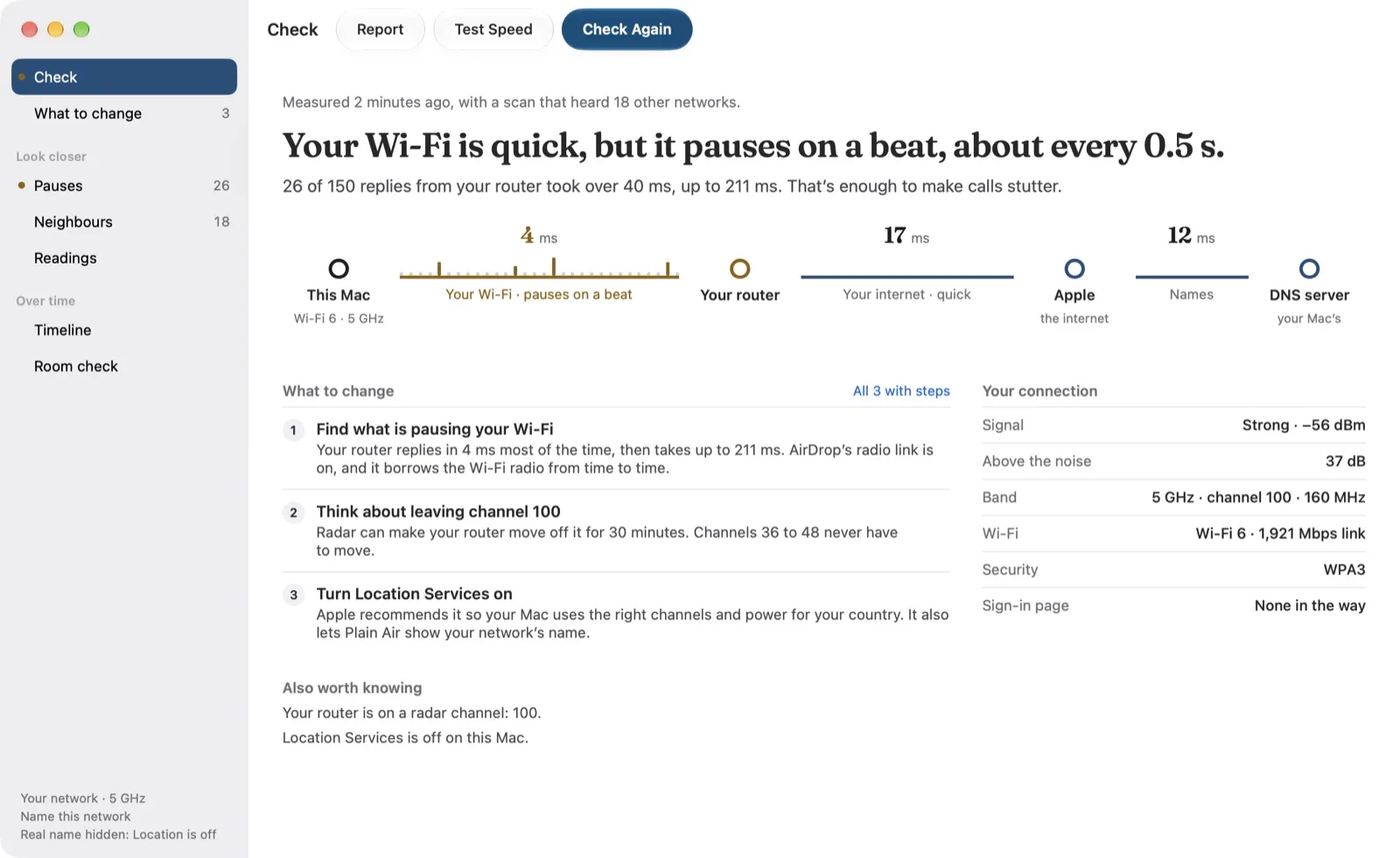
How it looks

A Mac app, through and through.

Shown with Plain Air’s demo, from the same real check as the rest of this page.

  1. 01

    Check

    One sentence, the path under it, the three changes most likely to help, and your connection in five facts.

    Plain Air’s Check: “Your Wi-Fi is quick, but it pauses on a beat, about every 0.5 s.”, then the path from this Mac to your router, Apple and the DNS server at 4, 17 and 12 ms, three things to change, and the connection’s facts
  2. 02

    Pauses

    Every reply from your router as a line, the four numbers, and one step to test.

    Pauses: 150 replies from the router as lines, the tall ones over 40 ms; a usual reply of 4 ms, 26 of 150 over 40 ms, a longest pause of 211 ms and none lost
  3. 03

    What to change

    Each change with why, where and how, its source, and one button to the right place.

    What to change: three cards, each with why, how and one button: find what is pausing your Wi-Fi, think about leaving channel 100, and turn Location Services on
  4. 04

    Neighbours

    Who shares your air, by channel. Your network in blue; never a neighbour’s name.

    Neighbours: one strong network shares your channel; the 5 GHz and 2.4 GHz networks nearby by channel and strength, yours on channel 100, with no network names
  5. 05

    Report

    The sentence, everything else it found, and how we know, as text or a PDF for your provider.

    The report: the verdict, what else was found, and how we know, with the signal, band and router times, ready to copy as text or save as a PDF
Plain Air’s Check: “Your Wi-Fi is quick, but it pauses on a beat, about every 0.5 s.”, then the path from this Mac to your router, Apple and the DNS server at 4, 17 and 12 ms, three things to change, and the connection’s factsPauses: 150 replies from the router as lines, the tall ones over 40 ms; a usual reply of 4 ms, 26 of 150 over 40 ms, a longest pause of 211 ms and none lostWhat to change: three cards, each with why, how and one button: find what is pausing your Wi-Fi, think about leaving channel 100, and turn Location Services onNeighbours: one strong network shares your channel; the 5 GHz and 2.4 GHz networks nearby by channel and strength, yours on channel 100, with no network namesThe report: the verdict, what else was found, and how we know, with the signal, band and router times, ready to copy as text or save as a PDF

The film

1:51

Plain Air, in under two minutes.

Private by design

  • Your readings never leave your Mac.
  • No account. No server of ours.

It talks only toyour routeryour Mac’s DNS serverApple

Plus Apple’s speed test, when you press Test Speed. No analytics. It asks for Location only to show your network’s name, and never a neighbour’s. The privacy policy

Price

€4.99 once

Free to find out. Pay once to keep watch.

Free, always

€0

  • The check, and every explanation
  • Pauses, and the beat
  • What to change, with the steps
  • Neighbours
  • Apple’s speed test

Unlocked, once

€4.99once

  • Timeline: signal, link rate, drops and roams
  • Keep watching, with the window closed
  • The menu bar’s one word
  • Room check, spot by spot
  • A history for each network you name
  • The report, as text or a PDF
Tell me when it’s out

£4.99 in the UK and $4.99 in the US, with Apple’s matching price elsewhere. No subscription. No account. Bought through the Mac App Store.

Questions

Good to know.

All Plain Air help

Does anything leave my Mac?

Your readings never do. To measure, Plain Air talks only to your router, your Mac’s DNS server and Apple’s check page, plus Apple’s speed test when you press Test Speed. There’s no account, no analytics and no server of ours.

Why does it ask for Location?

Only to show your network’s name: macOS shows Wi-Fi names only to apps you allow to use Location. Plain Air never asks where you are, and it asks only when you press Allow Location. Without it, everything else works; your network is just “your network”.

Will it change my router?

No. Plain Air never changes a setting on your Mac or your router, and never logs in to your router. Open your router’s settings opens your router’s own page in your browser, and you make the change.

Is it a speed test?

No. A speed test says how fast; Plain Air says which part is slow, and what to change. Test Speed runs macOS’s own test against Apple’s servers, only when you press it, because on a fast line it moves 0.5–1 GB.

Can it see what else is on my network?

No. Plain Air never scans your network for other devices, and never shows other people’s network names.

What does it cost?

Finding out is free: the check, every explanation, Pauses, Neighbours, Readings, What to change and Apple’s speed test. One €4.99 purchase adds the timeline, a quiet log of drops and outages even with the window closed, the menu bar, Room check, a history for each network you name, and the report. No subscription.

The sentence you want to see

Your Wi-Fi and your internet are both fine.

Tell me when it’s out

With Apple for review since 1 Nov